AutoMechanic 편집(Vlide)
Maker : CADTEK
환경설정
acad.lsp
"C:\AtmechPro\AtmSystem\acad.lsp"
;acad.lsp for AUTO-MECHANIC PRO HMC Ver.(2019)
;Copyright (c) CADTEK All rights Reserved
(setvar "cmdecho" 0)
(load "AtmRunPart") ;; manu 나 command 에서 실행할 경우 명령어
(defun c:atmech()
(load "AtmProSystem")Syatem file load (DCL 포함)
(arxload "acetutil")
(command "-STYLE" "돋움" "돋움체" 0.0 "" "" "" "")
(command "-STYLE" "WHGTXT" "txt,WHGTXT" 0.0 "" "" "" "" "")
) ;defun
(c:atmech);;;(c:atmech) 하면 C:\AtmProPrg\ 에서 프로그램 편집가능
(princ)
debugging_password "ljg"
	(if (/= debugging_password "ljg")
		(if	(= (member atm_cmd1 (atoms-family 0)) nil)
			(load fas_file_name)
		) ;_ end of if
	)
"(/= debugging_password "ljg")"이면 C:\AtmechPro\ 아래의 프로그램을 실행한다.
DCL loading
"(load_dialog "AtmXXX")"DCL 은 지원파일 검색경로에 있어야만 Loading 할수 있습니다
프로그램 배포용은
프로그램 실행
편집기 열기
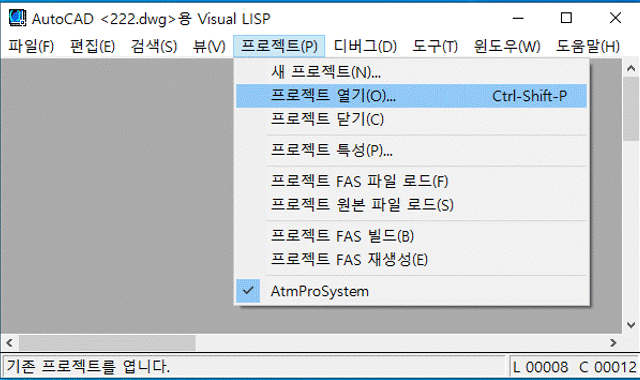
AutoCAD 에서 "명령: VLIDE"Visual Lisp 편집기를 열어 주세요
프로잭트(P) 열기
편집기의 상부 Pull-Down 메뉴에서 AutoCAD 에서
추가로 편집할려는 LISP 파일이 있는 "프로잭트 파일 "을 Open 후
AtmProSystem.prj 창의 최하단의 파일의 상단에 있는 Atmautorun을 더블클릭하여 열고enter 로 실행하세요
추가로 편집할려는 LISP 파일의 상단에 있는 (*Atmfun_autoload "xxx")를
visual Lisp Consol 창에 copy enter 로 실행하세요
LISP 파일의 상단
	;;;; (*Atmfun_autoload "Bolt&KS&KSB1003")
	;;;; (*Atmfun_autoload "Bolt&KS&KSB1002")
	;;;; (*Atmfun_autoload "Bolt&KS&KSB1038")
	;;;; (*Atmfun_autoload "Bolt&KS&KSV3032")
	;;;; (*Atmfun_autoload "Bolt&KS&KSB1033")
위의 파일은 "C:/AtmechPro/AtmSystem/AtmRunPart.lsp" 에서 확인할수 있으며
LISP 루틴을 자동으로 로드하는 방법
AutoCAD(LT) 또는 AutoCAD 툴셋을 시작할 때 AutoLISP 루틴이 자동으로 로드되게 하는 방법을 알아봅니다.
이는 소프트웨어 시작 시와 도면을 열 때 모두 적용된다.
이는 프로그램이 시작될 때마다 루틴을 수동으로 다시 로드해야 하기 때문에 필요한다.
시작에 추가
APPLOAD(명령)을 실행한다.
시작하기 세트에서 컨텐츠 버튼을 클릭한다.
추가 버튼을 클릭한다.
LISP 파일의 위치를 찾아서 선택하고 열기 버튼을 클릭한다.
모든 LISP 루틴이 시작하기 세트에 추가되면 닫기 버튼을 클릭한다.
닫기를 다시 클릭하여 응용프로그램 로드/언로드 대화상자를 닫습니다
acad.lsp/acaddoc.lsp 파일 사용
acad.lsp 파일은 AutoCAD가 시작될 때 항상 로드된다.
도면이 열릴 때마다 acaddoc.lsp 파일이 실행된다.
acad.lsp에서 특수 함수 S::STARTUP이 정의된 경우 이 함수가 실행된다.
예제
	(defun s::startup ()
		(load "STAIR.LSP")
		(load "WALL.LSP")
	)
wall.lsp 및 stair.lsp가 AutoCAD 검색 경로에 있으면 자동으로 로드된다. AutoLISP 루틴이 AutoCAD 지원 경로에 없는 경우 acad.lsp 파일 내에 전체 경로를 포함한다. "/" 또는 "\\"를 경로 구분 기호로 사용한다.
	(defun s::startup ()
		(load "C:/PROG/LISP/STAIR.LSP")
		(load "C:\\PROG\\LISP\\WALL.LSP")
	)
S::STARTUP 함수가 이와 같이 정의된 경우 다른 응용프로그램(예를 들어, 타사 플러그인)에서도 S::STARTUP 함수를 사용하면 문제가 발생할 수 있다. 호환성을 보장하려면 기존 S::STARTUP 함수가 있는 경우 코드를 추가하십시오.
	(defun mystartup ()
	(load "C:/PROG/LISP/STAIR.LSP")
	(load "C:\\PROG\\LISP\\WALL.LSP")
	)
	(if s::startup
		(setq s::startup (append s::startup (quote ((mystartup)))))
		(defun s::startup () (mystartup))
	)